Eaglercraft Server Hosting: Fast Setup (2026)
APP-DEPLOYMENT
November 20, 2025

Eaglercraft Server Hosting: Fast Setup (2026)

Host a private Eaglercraft 1.8.8 server for browser play. Compare Docker vs one-click deployment, get a public WSS URL, and start in minutes.

Share at:

Eaglercraft is an open-source project that lets you play Minecraft Java Edition (versions 1.5.2, 1.8.8, and 1.12.2) directly in your web browser—no download, no installation, no paid account required. Built using TeaVM to compile Java to JavaScript and WebAssembly, it runs on virtually any device with a modern browser, from school Chromebooks to smartphones.

Quick answer: If you want an Eaglercraft server online fast, you have two realistic paths: Docker if you want full control and don't mind Linux setup, or Sealos App Store if you want a public wss:// URL, SSL, and a working server in a few minutes.

Last verified: March 9, 2026

2026 Reality Check

QuestionShort answer
Can you still host an Eaglercraft server?Yes, but expect a fragmented ecosystem and changing public links
What do most players actually need?A stable server, a browser-friendly wss:// address, and a private setup they control
What is the main risk?Public infrastructure, mirrors, and community links change frequently, and the legal gray area has not gone away
What is the fastest practical setup?Use Sealos if you want speed and a public browser-ready URL; use Docker if you want lower-level control

If you came here from search, the core answer is simple: this page is most useful when you want to host your own private Eaglercraft server instead of relying on unstable public links.

If you want to...Best pathTime to launchBest next step
Get a private server online as fast as possibleSealos App Store~1-5 minutesDeploy the Eaglercraft template
Control every file, plugin, and port yourselfDocker on your own VPS~30-60 minutesJump to Method 1
Avoid manual SSL / WSS setupSealos App StoreAutomaticJump to Method 2
Learn how the stack works under the hoodDockerSlower, more flexibleRead the architecture section first

What you'll get from this guide:

  • A fast way to decide between Docker vs. Sealos
  • The exact steps to launch a private Eaglercraft server
  • A path to a public wss:// address so friends can join from the browser
  • A cleaner way to avoid the risk and instability of random public servers

Choose the Right Path First

Use caseBest fit
You want a working private server fast and do not want to manage SSL and ingress yourselfSealos
You want to customize files, ports, and plugins on your own hostDocker
You only want to play casually with a few friends for one sessionConsider Shared Worlds before running a full server
You just want a server listThis guide is not the best source for that because public server status changes too often

Deployment Prep Checklist

Before you pick a method, make sure you know these four things:

  • Do you want a public wss:// URL for browser players, or are you only testing privately?
  • Do you want to manage Docker, ports, and SSL yourself?
  • Do you need a server online in minutes, or do you want deeper control over plugins and files?
  • Are you hosting for friends / classmates or building a more customized setup?

Fastest deployment path:

Deploy on Sealos

The practical reason to host your own server is simple: public Eaglercraft servers are unstable, often unsafe, and frequently disappear. A private setup gives you:

  • Full control over who can join
  • A clean, stable environment free from malicious code
  • Your own rules—no one can block your URL
  • Persistence—your world stays online as long as you want

This guide covers two methods to set up your own Eaglercraft server:

  1. The Docker Way – Full control, hands-on setup for those comfortable with the command line
  2. The One-Click Way (Sealos) – Automated deployment in minutes, no technical expertise required

If you mainly want the server, you can skip the background sections and jump straight to Method 1 or Method 2.

What Exactly is Eaglercraft?

EaglercraftEaglercraft

Eaglercraft is an open-source project that ports Minecraft Java Edition to run directly in a web browser. Created by a developer known as "LAX1Dude" in 2021, it allows players to experience full Minecraft gameplay on nearly any device with a modern browser—from school Chromebooks to smartphones, and even smart fridges (as the community jokes).

It's not a Minecraft-inspired clone; it is a direct port of the original Java code, translated into browser-compatible formats using sophisticated compilation techniques.

How Eaglercraft Works Under the Hood

The magic behind Eaglercraft involves several key technologies:

TeaVM Compilation

Eaglercraft uses TeaVM (Tea Virtual Machine) to perform ahead-of-time (AOT) compilation of Minecraft's Java bytecode into JavaScript. This allows the entire Minecraft game logic—originally written in Java—to execute within a browser's JavaScript engine. The result is a massive JavaScript file that essentially contains the complete game.

WebAssembly (WASM) for Better Performance

Recent versions of EaglercraftX offer an experimental WASM-GC (WebAssembly with Garbage Collection) build. This newer runtime can deliver:

  • ~50% higher FPS compared to the JavaScript version
  • Improved game tick rates (TPS)
  • Better performance on low-end hardware

However, WASM-GC requires modern browser support. Chrome and Firefox remain the safest choices for testing it, while Safari support still lags enough that you should verify the current client notes before assuming it will work.

Custom WebGL Graphics Layer

Since Minecraft relies on OpenGL for 3D rendering (which browsers can't run natively), LAX1Dude created a custom OpenGL 1.3 emulator that maps Minecraft's drawing routines to WebGL operations on an HTML5 <canvas>. This allows the game to render graphics with minimal changes to the original source code.

Browser API Integration

Eaglercraft provides implementations for keyboard, mouse, audio, and file access using web APIs:

  • Keyboard/mouse input via JavaScript event listeners
  • Audio through HTML5 Audio or WebAudio (including a bundled OGG Vorbis decoder for iOS Safari compatibility)
  • World saves stored in browser storage (IndexedDB/LocalStorage)

Browser Compatibility

Eaglercraft runs on surprisingly old browsers—tested on Chrome 38 (circa 2014) and even Windows XP machines. Requirements:

FeatureMinimum Requirement
Basic gameplayWebGL 1.0 capable browser
Dynamic lighting & shadersWebGL 2.0 support
WASM performance modeBrowser with WASM-GC support
Touch controlsAuto-detected on mobile devices

The Real "Why": The Cat-and-Mouse Game

Eaglercraft's popularity isn't about being free. It's about access.

It's the main weapon in a "cat-and-mouse game" between students and school IT administrators:

  1. Students find a link to a client
  2. IT Admins block that specific URL with filters like GoGuardian or Securly
  3. Students re-host the open-source client on a new, unblocked URL
  4. Rinse, repeat—it's a "Hydra"; cut off one head, and two more pop up

But here's the real secret: Eaglercraft is often a Trojan horse. An IT admin consultant's report found that many clients have a hidden, built-in unfiltered web browser. Students aren't just bypassing the filter for a game—they've gained a tool to bypass the school's entire content filtering system.

Why Host Your Own Server?

The public Eaglercraft world is chaotic:

  • DMCA takedowns constantly remove popular sites
  • Unmoderated chat with toxic behavior from younger players
  • Malware-laden forks that can compromise your device
  • Unstable connections to overloaded public servers

Hosting your own server means a clean, stable, private environment where you control everything.

If that is already enough context for you, skip ahead to the deployment methods below.

Eaglercraft Client Features: What Can You Actually Do?

Eaglercraft isn't just a stripped-down browser port. It's a surprisingly feature-rich client that, in some ways, offers more than vanilla Minecraft 1.8 ever did.

Here's what you get out of the box:

Singleplayer Mode with World Saving

Unlike earlier versions that were multiplayer-only, EaglercraftX 1.8 includes full singleplayer support. You can:

  • Create new worlds directly in your browser
  • Save worlds to your browser's local storage (IndexedDB)
  • Export worlds as .epk files to back them up or share with friends
  • Import existing worlds, including converting vanilla Minecraft saves

This means your builds persist between sessions—even on a school Chromebook. Just don't clear your browser data.

Pro tip: Export your world regularly. Browser storage can be wiped by IT policies or cache cleaners.

Built-in PBR Shaders

This is where Eaglercraft flexes. The client ships with a Physically Based Rendering (PBR) shader system inspired by GTA V's deferred rendering engine—written from scratch by LAX1Dude.

FeatureDescription
Dynamic LightingTorches and lava cast realistic, soft light
ReflectionsWater, glass, and metal blocks reflect the environment
PBR TexturesDefault textures show glossiness and metallic properties
Deferred RenderingModern rendering pipeline for better performance

To enable shaders: Options → Video Settings → Shaders → Select PBR Pack

Requirements: WebGL 2.0 support. Works on most modern browsers, but skip this on older Chromebooks if you want playable framerates.

Integrated Voice Chat

EaglercraftX has built-in voice chat using WebRTC—no Discord or third-party apps needed. It works in both Shared Worlds and on servers that support it.

How it works:

  1. Join a server or open your world to friends
  2. Voice chat activates automatically (if enabled)
  3. Proximity-based audio in-game

Privacy warning: WebRTC can expose your IP address to other players. On public servers, consider this before enabling voice.

Server owners can disable voice chat by adding allowVoiceClient: false to their client configuration.

Shared Worlds (Play with Friends Without a Server)

Don't want to set up a full server? Shared Worlds lets you invite friends to your singleplayer world using peer-to-peer connections.

Here's how it works:

  1. Open your singleplayer world
  2. Press Esc → "Open to Shared World"
  3. Share the generated join code with friends
  4. They enter the code in Multiplayer → "Join Shared World"

Behind the scenes, this uses WebRTC with relay servers to punch through NATs. It's essentially "Open to LAN" but works over the internet.

Limitations:

  • Performance depends on the host's upload speed
  • Best for 2-4 players
  • Both players need matching relay server URLs configured

Resource Pack Support

You can import any Minecraft 1.8-compatible resource pack directly into Eaglercraft:

  1. Go to Options → Resource Packs
  2. Click "Open Pack Folder" or drag-and-drop a .zip file
  3. The pack is stored in your browser and persists between sessions

Missing the music? Minecraft's soundtrack isn't included by default (file size + copyright). Download a C418 music resource pack and import it for the full nostalgic experience.

WebAssembly Mode for 50% Better Performance

If your browser supports WebAssembly with Garbage Collection (WASM-GC), Eaglercraft can run significantly faster:

RuntimePerformanceBrowser Support
JavaScriptBaselineAll browsers (Chrome 38+, even Windows XP)
WASM-GC~50% more FPSChrome 119+, Firefox 120+, Edge 119+

To check: Look for "WASM-GC" in the Eaglercraft loading screen or F3 debug menu.

Note: Safari remains the least reliable choice for WASM-GC compared with Chrome or Firefox. If browser support is a deciding factor, verify the current client notes before you commit to that path.

What About Mods and Hacked Clients?

Because Eaglercraft is open-source, the community has created numerous modified clients:

ClientFocusNotable Features
Resent ClientPvPKeystrokes, FPS boost, click GUI, toggle mods
Astra ClientAestheticsEnhanced shaders, cleaner UI
CyanogenMCQuality of LifePolished experience, bug fixes
Shadow/PixelPerformanceOptimized for low-end devices

Warning: Some unofficial clients floating around contain malware or hidden browser exploits. Only download from trusted sources like the official Eaglercraft site or verified GitHub repositories.

Browser Compatibility at a Glance

Eaglercraft is designed to run on almost anything:

  • ✅ Chrome 38+ (2014 and newer)
  • ✅ Firefox, Edge, Opera (modern versions)
  • ✅ Chromebooks (the primary use case)
  • ✅ Touch devices (auto-detects and shows touch controls)
  • ✅ Windows XP (yes, really)
  • ⚠️ Safari (works, but no WASM-GC, no OGG audio without polyfill)
  • ❌ Internet Explorer (WebGL not supported)

The only hard requirement is WebGL support. For advanced features like dynamic lighting, you need WebGL 2.0.

The Eaglercraft Server Hosting Challenge

Here's the catch: an Eaglercraft server isn't one piece of software. It's a fragile "man-in-the-middle" setup that bridges two incompatible worlds.

The Core Problem: Protocol Mismatch

A browser client lives in a security sandbox. It's forbidden from opening direct TCP/IP socket connections to game servers. It can only speak web-standard protocols—primarily WebSockets (ws:// or secure wss://).

But a standard Minecraft server (like Spigot or Paper) only speaks the Minecraft TCP protocol on port 25565.

They're speaking different languages. To make them communicate, you need a translation bridge.

The Three-Part Architecture

Every Eaglercraft multiplayer setup requires these three components working together:

┌─────────────────┐     WebSocket      ┌─────────────────┐     Minecraft TCP    ┌─────────────────┐
│   Browser       │ ──────────────────▶│   Proxy +       │ ───────────────────▶│   Game Server   │
│   (Eaglercraft) │     (wss://)       │   Translator    │     (Internal)       │   (Spigot)      │
└─────────────────┘                    └─────────────────┘                      └─────────────────┘

1. The Bouncer (Proxy Server)

This is the front door—the only thing the browser talks to. Common options include:

The proxy listens on a web port (typically 80, 443, or a custom port) and accepts WebSocket connections from browsers.

2. The Translator (EaglercraftXServer Plugin)

This is the magic layer. The EaglercraftXServer plugin sits inside the proxy and performs real-time protocol translation:

  • Incoming: Unwraps WebSocket frames → extracts Minecraft packets → forwards to game server
  • Outgoing: Receives Minecraft packets → wraps in WebSocket frames → sends to browser

The plugin also handles Eaglercraft-specific features:

  • Authentication: Since Eaglercraft clients can't use Mojang login, the plugin manages alternate auth systems (optional password registration, session cookies, etc.)
  • Skins & Capes: Offline clients can't use Mojang's skin API, so the plugin serves community-provided skins
  • Compression: Optional zlib compression on WebSocket streams to reduce bandwidth (critical for school WiFi)
  • Rate Limiting: Configurable timeouts and connection limits to prevent abuse

3. The Game Server (Spigot/Paper)

The actual Minecraft server running your world. Critical requirement:

⚠️ Must run in online-mode=false (offline/cracked mode)

This is necessary because Eaglercraft clients cannot perform official Mojang authentication. The proxy handles any authentication you want to implement, then forwards "pre-authenticated" players to the game server.

The EaglercraftXServer Plugin

Originally, there were separate plugins for BungeeCord (EaglerXBungee) and Velocity (EaglerXVelocity). In 2025, these were unified into EaglercraftXServer—a single plugin that works with:

  • BungeeCord
  • Velocity
  • Direct Spigot/Paper installation (no proxy needed for simple setups)

The unified plugin supports all Eaglercraft versions (1.5.2, 1.8.8, 1.12.2) simultaneously, meaning players on different client versions could potentially connect to the same network (with appropriate backend servers).

Key Configuration Options:

SettingPurpose
websocket_compressionEnable zlib compression (recommended for WiFi)
connection_timeoutHow long to wait for handshake completion
max_connectionsLimit concurrent WebSocket connections
allow_voice_clientEnable/disable built-in voice chat
skin_serviceConfigure custom skin server URL

Shared Worlds: The Serverless Alternative

Don't want to set up all this infrastructure? EaglercraftX 1.8 includes Shared Worlds—a peer-to-peer multiplayer system:

  1. Start a singleplayer world
  2. Open the pause menu and select "Shared World"
  3. Share the generated join code with friends
  4. Friends enter the code in their multiplayer menu

Behind the scenes, this uses WebRTC to establish direct browser-to-browser connections, with community relay servers helping browsers find each other. No dedicated server, no proxy, no configuration—perfect for casual play with friends.

Limitations:

  • Performance depends on host's device and upload speed
  • Works best with small groups (2-5 players)
  • Voice chat may expose IP addresses to participants
  • All players must have matching relay URLs configured

Method 1: The Docker Way (Full Control)

This is the classic, hands-on method for folks who are comfortable with a command line and want full control over their Eaglercraft server configuration. This approach is ideal if you:

  • Want to customize every aspect of your server
  • Already have a Linux VPS or dedicated server
  • Need to run multiple game servers on the same machine
  • Want to learn how Eaglercraft's architecture actually works

Prerequisites: A server (like a Linux VPS or home server) with Docker and docker-compose installed. Most cloud providers (DigitalOcean, Vultr, Linode) offer $5-10/month VPS options that work perfectly for small Eaglercraft servers.

Step 1: Create Necessary Directories

First, create directories on your server to store your world data. This way, even if you update or restart the server, your world is safe.

mkdir -p ~/eaglercraft-server/{world,world_nether,world_the_end}
cd ~/eaglercraft-server

Step 2: Create docker-compose.yml File

Next, create the configuration file that tells Docker how to build your server.

nano docker-compose.yml

Paste the following content into the file. This configuration bundles the proxy, translator, and game server into a single image.

version: '3.8'
 
services:
  eaglercraft:
    image: ghcr.io/yangchuansheng/eaglerx1.8server:1.12.1
    container_name: eaglercraft-server
    ports:
      - "5200:5200" # For adding to the server list
      - "5201:5201" # For direct, stable connections
    volumes:
      - ./world:/world              # Overworld data
      - ./world_nether:/world_nether    # Nether data
      - ./world_the_end:/world_the_end  # The End data
    restart: unless-stopped

Step 3: Start the Server

Save the file and exit the editor. Now, tell Docker to start the server in the background (-d).

docker-compose up -d

Step 4: Check Logs

You can check the server's console logs to make sure it started correctly.

docker-compose logs -f

Step 5: Connect to Your Docker Server

Once deployed, you have two ways to connect:

  • Method A: Add to Server List (Port 5200)

    1. Open your Eaglercraft client.
    2. Go to "Multiplayer" -> "Add Server".
    3. Enter the server address: ws://YOUR_SERVER_IP:5200
    4. (A quick heads-up: You only use wss://, the secure version, if you've manually set up an SSL reverse proxy like Nginx or Caddy. For this simple setup, stick to ws://.)
  • Method B: Direct Connection (Port 5201 - Recommended)

    1. This port is often more stable for long play sessions.
    2. Simply visit this URL in your browser: http://YOUR_SERVER_IP:5201

Note on ws:// vs wss://: Use ws:// (unsecured WebSocket) for this basic setup. To use wss:// (secured), you'll need to configure an SSL reverse proxy with Nginx or Caddy—covered in the advanced section below.

Advanced: Setting Up Secure WSS with SSL

For public servers, especially those shared via links, using wss:// (WebSocket Secure) is recommended. Here's how to set it up with Nginx:

1. Install Nginx and Certbot:

sudo apt update
sudo apt install nginx certbot python3-certbot-nginx

2. Create Nginx configuration (/etc/nginx/sites-available/eaglercraft):

server {
    listen 443 ssl;
    server_name your-domain.com;
 
    ssl_certificate /etc/letsencrypt/live/your-domain.com/fullchain.pem;
    ssl_certificate_key /etc/letsencrypt/live/your-domain.com/privkey.pem;
 
    location / {
        proxy_pass http://127.0.0.1:5200;
        proxy_http_version 1.1;
        proxy_set_header Upgrade $http_upgrade;
        proxy_set_header Connection "upgrade";
        proxy_set_header Host $host;
        proxy_read_timeout 86400;
    }
}

3. Enable and get SSL certificate:

sudo ln -s /etc/nginx/sites-available/eaglercraft /etc/nginx/sites-enabled/
sudo certbot --nginx -d your-domain.com
sudo systemctl restart nginx

Now players can connect via wss://your-domain.com.

Method 2: The One-Click Way

If the Docker method feels like too much work, this is the zero-configuration alternative. Sealos is a cloud platform built specifically for containerized applications—it handles all the complex infrastructure so you can focus on playing.

Why Choose Sealos Over Manual Docker?

FeatureDocker (Self-Hosted)Sealos (One-Click)
Setup Time30-60 minutesUnder 5 minutes
Technical KnowledgeLinux, Docker, networkingNone required
SSL/WSSManual Nginx/Certbot setupAutomatic HTTPS
Server ManagementSSH + command lineWeb dashboard
ScalingManual configurationOne-click upgrade
CostVPS ($5-20/month) + your timePay-as-you-go (similar pricing)
MaintenanceYou handle updates/securityPlatform managed
Best ForLearning, full customizationQuick setup, reliability

Sealos uses the same container technology under the hood—it's not a different server; it's the same Docker image with all the hard parts automated.

Step 1: Deploy from Template

The fastest way to get started is using the pre-configured Eaglercraft template:

Deploy on Sealos

Click the button above.

Step 2: Configure and Deploy

Click "Deploy Now". You don't need to change any configuration.

Step 3: Get Your Server URL

After 0~1 minutes, your server is live. Sealos automatically:

  • Provisions the container
  • Configures networking
  • Sets up SSL certificates
  • Generates a public wss:// address

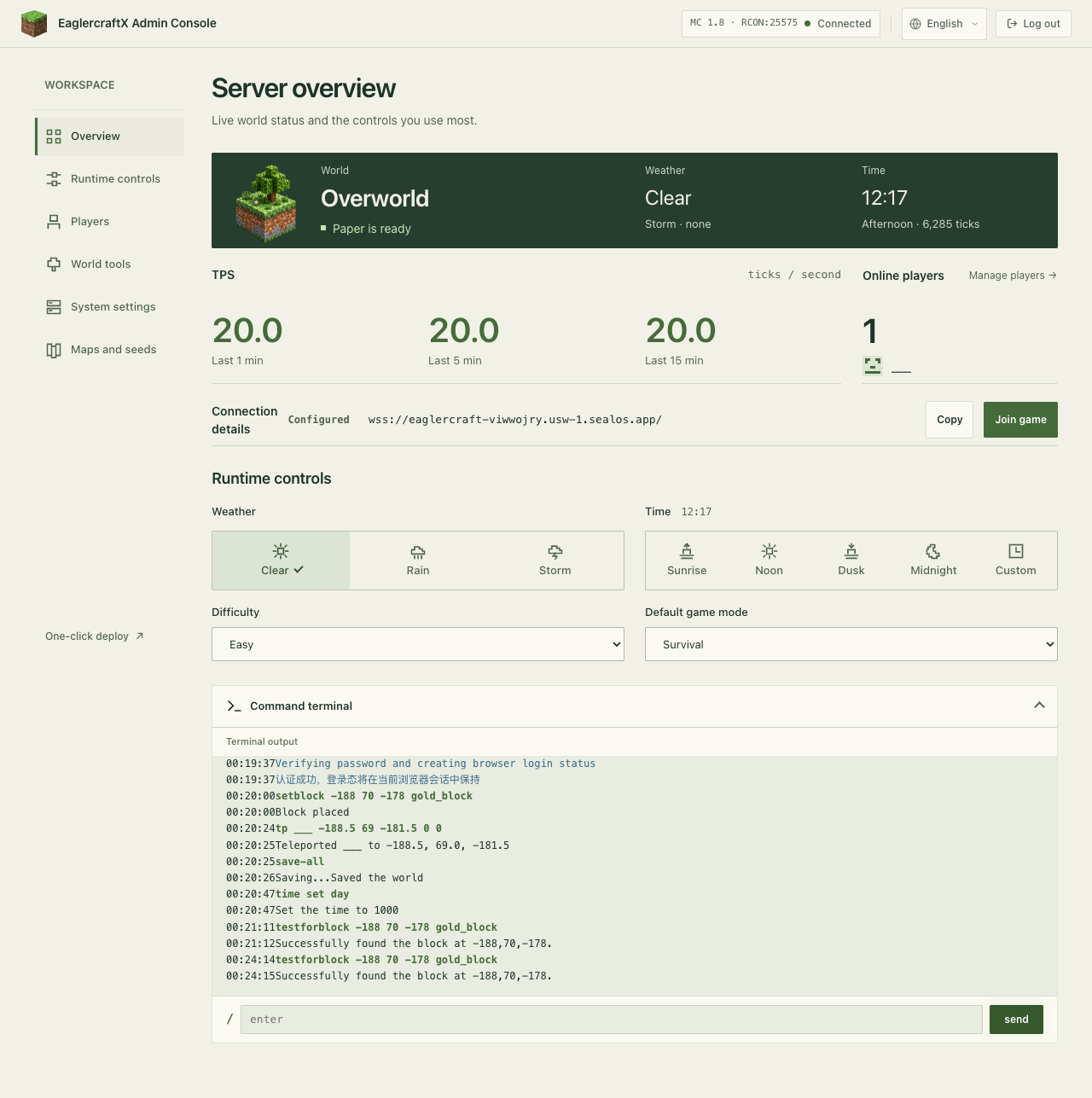
Find your server URL on the application details page:

Sealos Eaglercraft Server WebSocket URLSealos Eaglercraft Server WebSocket URL

Step 4: Connect and Play

Copy the wss:// URL and add it to your Eaglercraft client:

  1. Open Eaglercraft in your browser
  2. Click MultiplayerAdd Server
  3. Paste your wss://xxxxx.sealos.io address
  4. Click Done, then join your server

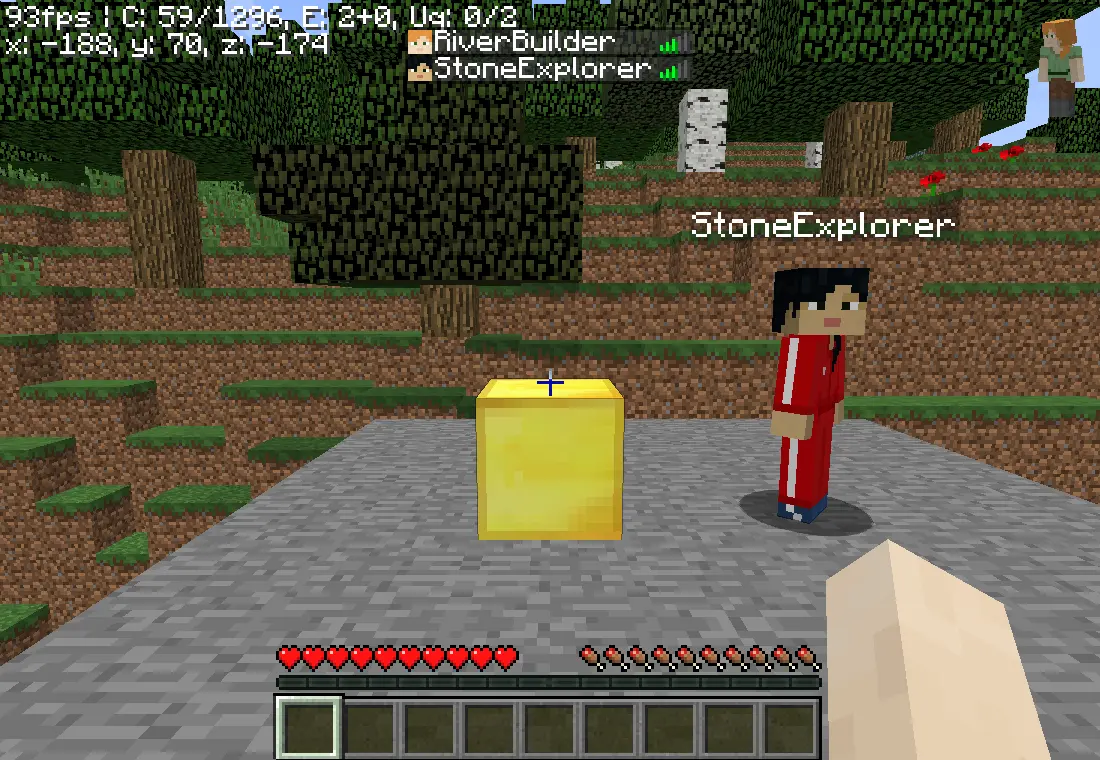
Eaglercraft Client Add ServerEaglercraft Client Add Server

That's it—you now have a private Eaglercraft server with automatic SSL, no port forwarding, and no command-line required.

When to Choose Docker Instead

While Sealos is easier, the Docker method makes more sense if you:

  • Already pay for a VPS for other projects.
  • Need custom plugins beyond the default setup.
  • Want to run multiple servers (survival, creative, minigames).
  • Are learning server administration as a skill.

What About Public Eaglercraft Servers?

Before investing time in your own server, you might want to explore the public Eaglercraft multiplayer scene. The important caveat is that public server addresses, uptime, moderation quality, and legal status change frequently. That makes static "top server" lists one of the least durable parts of any Eaglercraft article.

How to Evaluate a Public Eaglercraft Server

What to checkWhy it matters
Does the server publish a working wss:// address and recent join instructions?Browser-based multiplayer depends on the WebSocket endpoint being current
Is there an active Discord or community channel?Public servers often communicate outages, resets, and new addresses there first
Is moderation visible and documented?Public chat quality and player safety vary widely
Does the server explain compatibility clearly?Some communities optimize for 1.8.8 PvP, others for survival or mixed-client setups
Are you comfortable trusting the client and link source?The Eaglercraft ecosystem is heavily mirrored, and not every mirror is trustworthy

Finding current servers: Use community-maintained server hubs like servers.eaglercraft.com, but verify the address and community activity before joining.

Choosing the Right Server Type

PvP & Competitive:

  • Practice servers (Zentic, ArchMC) let you train combat skills
  • 1.8.8 combat mechanics (no attack cooldown) are standard
  • Expect players using optimized clients (Resent, Astra) for competitive edge

Survival & Building:

  • Look for servers with land protection plugins (GriefPrevention, Towny)
  • VanillaCraft-style servers offer the purest experience
  • SMP (Survival Multiplayer) servers often have active communities

Minigames:

  • BedWars, SkyWars, and similar modes work well on Eaglercraft
  • Queue times vary; larger servers fill games faster
  • Some servers offer unique Eagler-only game modes

The Case for Running Your Own Server

Public servers are great for quick fun, but they come with trade-offs:

Public ServersYour Own Server
❌ Someone else's rules✅ Your rules
❌ Can't install custom plugins✅ Full plugin control
❌ May shut down without notice✅ Runs as long as you want
❌ Possible lag from overcrowding✅ Dedicated resources
❌ Risk of toxic players✅ Whitelist your friends
❌ No world backup access✅ Full data ownership
❌ Dynamic links and uncertain uptime✅ Stable join path you control

Safety Considerations for Public Servers

The Eaglercraft ecosystem exists in a legal gray area, which attracts both passionate fans and bad actors:

Risks to be aware of:

  • Malware-laden clients: Some third-party Eaglercraft sites bundle malware. Stick to known sources like eaglercraft.com
  • Unmoderated chat: Younger player base means inconsistent moderation on some servers
  • IP exposure via voice chat: Eaglercraft's WebRTC voice feature can reveal your IP address to other players
  • Impersonation: Without Mojang authentication, anyone can use any username

Best practices:

  • Use servers with active moderation and Discord communities
  • Disable voice chat on untrusted servers (allowVoiceClient: false in client config)
  • Don't share personal information in public chat
  • Consider a VPN if privacy is a concern

The Hydra Problem

Here's the practical reality: Eaglercraft links, mirrors, and public infrastructure are unstable. Takedowns happen, school filters change, and community hosts move or disappear.

That is exactly why many players end up hosting their own server. Not because self-hosting removes every legal or platform risk, but because it gives you a stable environment, a join path you control, and less dependence on random public infrastructure.

Before you dive in, you need to understand what you're getting into. Eaglercraft exists in a legal gray area, and there are real risks to consider.

Let's be direct: Mojang (Microsoft) considers Eaglercraft copyright infringement.

In 2023, Microsoft launched a widespread crackdown, issuing DMCA takedown notices that removed thousands of Eaglercraft repositories from GitHub, GitLab, and even Replit. Their official position is clear:

"EaglerCraft allows the connection to Minecraft: Java Edition servers without requiring users to have an authenticated Minecraft account... The development and distribution of this product infringes Mojang's intellectual property rights."

The original developer, LAX1Dude, eventually removed code from his sites after this pressure. However, the project has continued through mirrors and community distribution.

What this means for you:

  • Playing Eaglercraft: Extremely unlikely to result in any legal action against you personally. Microsoft targets distributors, not players.
  • Hosting a public server: Higher risk. Your server could receive a takedown notice, especially if it becomes popular.
  • Hosting a private server for friends: Lower visibility than a public server, but still not risk-free.

Security Risks: The Malware Problem

Here's the more immediate danger: not all Eaglercraft clients are safe.

After Microsoft's crackdowns removed official sources, the vacuum was filled by countless re-uploads and forks. Many of these are trustworthy. Many are not.

Some malicious forks have been found to contain:

  • Cryptocurrency miners running in the background
  • Keyloggers capturing everything you type
  • Hidden browsers that bypass school content filters entirely
  • Excessive advertisements and tracking scripts

An IT security consultant investigating Eaglercraft in schools discovered that some clients had a secret, built-in unfiltered web browser—turning a "harmless game" into a tool for bypassing all network restrictions.

How to Stay Safe

If you're going to use Eaglercraft, follow these guidelines:

DoDon't
Download only from eaglercraft.com or verified sourcesClick random "Eaglercraft unblocked" links from search results
Host your own server with known, clean imagesJoin servers from untrusted sources
Use a separate browser profile or incognito modeEnter any personal information or passwords
Keep your browser and system updatedIgnore security warnings from your browser

The Ethical Perspective

Is using Eaglercraft "wrong"? That depends on your viewpoint:

The case against: Minecraft is a paid product. Using Eaglercraft means playing without paying, which arguably deprives developers of revenue.

The case for: Many Eaglercraft users are students who can't purchase games, or people who already own Minecraft but need browser access. The official Eaglercraft site explicitly states: "If you enjoy Minecraft, you should buy the game."

The practical reality: Eaglercraft likely doesn't significantly impact Minecraft's $200+ million in sales. Many users are not "lost sales"—they're people who would never have purchased anyway, or who eventually do buy the official game.

We're not here to tell you what to think. We're here to make sure you understand the landscape before you make your choice.

Your World, Your Rules

If you use public servers, you accept someone else's moderation, uptime, address changes, and client trust model.

If you host your own, you gain something more practical than hype: a cleaner server for friends, a stable world you can keep online, and a join workflow you control.

That is the strongest reason to self-host Eaglercraft in 2026. Not because the ecosystem is perfectly safe or legally settled, but because a private setup is often the most stable option available for the people who still want to use it.

Next Step Options

  • If you just want the fastest working setup, use the Sealos Eaglercraft template.
  • If you need full control over files, ports, and plugins, stick with the Docker path in this guide.
  • If you want to understand the broader platform behind the one-click flow, read What Is Sealos? and What Is DevBox?.

FAQ

Sealos LogoSealos

Unify Your Entire Workflow.

Code in a ready-to-use cloud environment, deploy with a click. Sealos combines the entire dev-to-prod lifecycle into one seamless platform. No more context switching.

Share to LinkedinShare to XShare to FacebookShare to RedditShare to Hacker News

Explore with AI

Get AI insights on this article

Share this article

Tip:AI will help you summarize key points and analyze technical details.
Sealos LogoSealos

Unify Your Entire Workflow.

Code in a ready-to-use cloud environment, deploy with a click. Sealos combines the entire dev-to-prod lifecycle into one seamless platform. No more context switching.

Share to LinkedinShare to XShare to FacebookShare to RedditShare to Hacker News

On this page

2026 Reality Check
Choose the Right Path First
Deployment Prep Checklist
What Exactly is Eaglercraft?
How Eaglercraft Works Under the Hood
Browser Compatibility
The Real "Why": The Cat-and-Mouse Game
Why Host Your Own Server?
Eaglercraft Client Features: What Can You Actually Do?
Singleplayer Mode with World Saving
Built-in PBR Shaders
Integrated Voice Chat
Shared Worlds (Play with Friends Without a Server)
Resource Pack Support
WebAssembly Mode for 50% Better Performance
What About Mods and Hacked Clients?
Browser Compatibility at a Glance
The Eaglercraft Server Hosting Challenge
The Core Problem: Protocol Mismatch
The Three-Part Architecture
The EaglercraftXServer Plugin
Shared Worlds: The Serverless Alternative
Method 1: The Docker Way (Full Control)
Step 1: Create Necessary Directories
Step 2: Create docker-compose.yml File
Step 3: Start the Server
Step 4: Check Logs
Step 5: Connect to Your Docker Server
Advanced: Setting Up Secure WSS with SSL
Method 2: The One-Click Way
Why Choose Sealos Over Manual Docker?
Step 1: Deploy from Template
Step 2: Configure and Deploy
Step 3: Get Your Server URL
Step 4: Connect and Play
When to Choose Docker Instead
What About Public Eaglercraft Servers?
How to Evaluate a Public Eaglercraft Server
Choosing the Right Server Type
The Case for Running Your Own Server
Safety Considerations for Public Servers
The Hydra Problem
Is Eaglercraft Legal? Understanding the Risks
The Legal Reality
Security Risks: The Malware Problem
How to Stay Safe
The Ethical Perspective
Your World, Your Rules
Next Step Options

Ready to Stop Configuring and
Start Creating?

Get started for free. No credit card required.

Play