Quick answer: Yes, you can use Claude Code on your phone in 2026. The best setup depends on the task: use the official Claude app or claude.ai for quick review and cloud-based tasks, SSH + Tailscale for full terminal control, or Sealos DevBox for the fastest cross-device workspace without maintaining your own host.
Last verified: March 9, 2026. Mobile app availability and product capabilities change quickly, so re-check Anthropic's official help center if you are choosing a workflow for a team or writing internal docs.
| If you want to... | Best method | Works on | Setup time | Best next step |
|---|---|---|---|---|
| Use the official mobile experience | Claude app / Claude web | iPhone + Android | ~5 minutes | Jump to Method 1 |
| Get full terminal control over your own machine | SSH + Tailscale | iPhone + Android | ~20-40 minutes | Jump to Method 2 |
| Avoid host setup and start fastest | Sealos DevBox | iPhone + Android | ~1-3 minutes | Jump to Method 5 |
| Run it directly on Android for experimentation | Termux | Android | ~15-30 minutes | Jump to Method 3 |
Best fit for most readers: If you want Claude Code on your phone without babysitting a host machine, start with Sealos DevBox. It gives you a pre-configured cloud workspace, a shareable environment, and a cleaner path to mobile use than DIY SSH for most people.
➡️ Launch Claude Code Environment on Sealos DevBox
2026 Mobile Reality Check
| Goal | Official Claude app / web | SSH + Tailscale | Termux on Android | Sealos DevBox |
|---|---|---|---|---|
| Review AI work, triage issues, or approve a PR from your phone | Best fit | Good | Limited | Good |
| Run long terminal sessions against a real repo | Limited | Best fit | Good for experiments | Best fit |
| Start from Android without another computer | Good for cloud tasks | Requires host | Best fit for local experimentation | Good |
| Get a clean, shareable workspace fast | Limited | Requires setup | Limited | Best fit |
The practical takeaway: mobile Claude Code is no longer just an iPhone-only or SSH-only story. Android now has an official Claude app, but the best workflow still depends on whether you need quick review, real terminal control, or a zero-setup cloud workspace.
Choose by Task, Not Just by Platform
| Situation | Best choice | Why |
|---|---|---|
| You want the lightest official workflow for quick review or cloud tasks | Claude app / Claude web | Lowest friction for checking work, reviewing output, and launching simple tasks |
| You are on-call or need full terminal control | SSH + Tailscale | Most flexible and closest to a desktop workflow |
| You use Android and want a local experiment | Termux | Good for lightweight CLI work without another machine |
| You want the fastest cross-device setup | Sealos DevBox | No host setup, cleaner access from both iPhone and Android |
If you only need a decision rule, use this one:
- Pick Claude app / web for quick review, cloud tasks, and simple repo-linked actions.
- Pick SSH + Tailscale when you need the closest thing to a real desktop terminal on your phone.
- Pick Termux when you specifically want to experiment on Android without another machine.
- Pick Sealos DevBox when you want a browser-accessible Claude Code workspace that works from either iPhone or Android with minimal setup.
Why Sealos DevBox Is the Fastest Cross-Device Option for Many Teams
If your real goal is not "mobile hacking" but getting useful work done away from your desk, Sealos DevBox is often the cleanest path.
The concrete reason is simple: the Sealos Claude Code template is already set up for this workflow. The runtime includes @anthropic-ai/claude-code and happy-coder, gives you a browser terminal immediately, and avoids the "keep a laptop online somewhere" requirement that SSH setups depend on.
In practice, that means:
- You can launch a workspace from either iPhone or Android without provisioning a host first.
- You can keep one cloud environment available across devices instead of re-establishing SSH sessions.
- You can pair the workspace with Happy for a more phone-friendly session handoff.
This is why Sealos is the best fit when the question is not "Can I do this at all?" but "How do I make this workable in real life?"
The rest of this guide explains each path in detail. If you already know your situation, jump to the matching method.
The landscape for mobile coding with Claude Code has evolved quickly. Anthropic now offers Claude on both iPhone and Android, while power users still lean on Termux, SSH, and cloud workspaces when they need more control.
This definitive guide covers every method for using Claude Code on your mobile device:
- Official Claude Apps / Web – Anthropic's native mobile path for iPhone and Android
- SSH + Tailscale – The power user's remote terminal setup
- Termux on Android – Run Claude Code CLI directly on your phone
- Happy Coder – A UI-centric bridge for easier mobile access
- Cloud CDEs – One-click environments like Sealos DevBox
Whether you're an on-call engineer, a freelancer, or just trying to stay productive away from your desk, this guide will help you choose the least painful setup.
Why Code on a Phone, Anyway?
Let's be honest: coding on a tiny touchscreen sounds miserable. And for building an entire application from scratch, it is. The real value of a mobile coding setup isn't to replace your desktop, but to extend it.
The Advantages:
- Unmatched Portability: The freedom to manage projects from anywhere. You are no longer tethered to a specific location to be productive.
- Emergency Fixes: A critical bug alert arrives while you're away. A mobile setup lets you immediately investigate and deploy a hotfix, turning a crisis into a minor inconvenience.
- AI-Powered Project Management: Much of working with Claude involves high-level instructions and review. These tasks are perfect for a mobile interface, letting you delegate work to your AI partner and keep projects moving on the go.
- Continuous Learning: A dev environment in your pocket is a fantastic tool for testing snippets, experimenting with libraries, or working through tutorials in spare moments.
The Challenges:
- Limited Screen Real Estate: Difficult for viewing multiple files or complex codebases.
- Virtual Keyboards: Slow and error-prone for typing complex syntax.
- Environment Constraints: Phones can't run a full-fledged local development environment.
The key is leveraging mobile for targeted tasks. If that's already obvious to you, the next section explains the shared architecture briefly before the method-by-method setup steps.
The Core Concept: A Remote-First Architecture
Every method in this guide shares the same basic principle: your phone is usually a thin client. The real work happens in Anthropic's cloud, on your own host machine, or inside a cloud development environment.
If you only need the practical takeaway, it is this: mobile Claude Code works best when you avoid treating the phone itself as the main computer.
What Is Claude Code and How Does It Work?
Claude Code is Anthropic's agentic AI coding assistant that lives in your terminal. Unlike traditional autocomplete tools that merely suggest the next line of code, Claude Code is designed to autonomously plan and execute multi-step coding tasks based on natural language instructions.
When you tell Claude Code to "fix the authentication bug in the login module," it doesn't just offer a suggestion. Instead, it:
- Analyzes your entire codebase for context.
- Plans a series of steps (e.g., locate the bug, modify files, write tests).
- Executes those steps by editing files and running shell commands.
- Verifies the fix by running your test suite.
This agentic behavior is powerful, but it needs file access, shell execution, and a more stable runtime than a phone usually provides. That is why most mobile setups are remote-first.
The Architecture: Three Key Components
Understanding the underlying architecture helps you troubleshoot issues and choose the best mobile setup for your needs.
1. The Claude AI Model (Cloud)
The "brain" of the operation. This large language model, hosted on Anthropic's servers, interprets your natural language prompts and decides what actions to take. Your prompts and relevant code snippets are sent via API, and the model returns its decisions. The quality of Claude's reasoning—its ability to understand complex codebases and produce coherent solutions—is why it has become a favorite among developers.
2. The Claude Code CLI (Host Machine)
This is the orchestrator running on your host computer (your desktop, a laptop, or a cloud server). It's an open-source Node.js application that you install via npm (npm install -g @anthropic-ai/claude-code). Its job is to:
- Receive instructions from the Claude AI model.
- Execute those instructions locally (e.g., edit files, run
git commit, executenpm test). - Send results and new context back to the model.
The CLI is designed with the Unix philosophy of composability, meaning it integrates seamlessly with other command-line tools, scripts, and CI/CD pipelines.
3. Your Phone (The Thin Client)
Your mobile device is simply a window into the host machine's terminal session. Whether you connect via SSH, a web interface, or a dedicated app, your phone sends text commands and receives text output. The heavy lifting—the AI inference and the code execution—happens elsewhere. This is why even a budget smartphone can effectively "run" a powerful AI coding agent.
Security by Design: Sandboxing and Permissions
A critical aspect of Claude Code's design is its permission model. Because an autonomous AI agent could theoretically execute harmful commands (imagine a prompt injection attack telling it to run rm -rf /), Claude Code implements robust safeguards.
- Explicit Approval: By default, the CLI prompts you before any action that modifies files or executes potentially destructive commands. You'll see messages like: "Claude wants to run
npm run build. Allow? (y/n)". - Sandboxing: For more autonomous workflows, Anthropic introduced sandboxing features that confine Claude to specific directories and network resources. Within the sandbox, Claude can operate freely; outside of it, actions are blocked. This reportedly reduces permission prompts by 84% while maintaining security.
- Secure Git Proxy: When pushing code to GitHub, Claude Code uses a proxy service. You authenticate with GitHub, but Claude itself never sees your credentials. This prevents token leakage even if an AI session were somehow compromised.
On mobile, these safeguards are especially important. You might be on a public network or quickly approving actions on a small screen. The architecture ensures that even a misplaced tap won't lead to disaster, as long as you've configured your sandbox correctly.
Why This Matters for Mobile
This remote-first architecture is what makes mobile development with Claude Code not just possible, but practical:
| Limitation of Mobile Devices | How Remote Architecture Solves It |
|---|---|
| Weak CPU/GPU | All AI inference runs on Anthropic's cloud; all compilation runs on your host. |
| Limited Storage | Your codebase lives on the host, not your phone. |
| No Native Terminal | You SSH into a real Linux/macOS/WSL terminal. |
| Unstable Connectivity | Tools like tmux or mosh keep sessions alive even if your connection drops. |
With this foundation in mind, let's explore the specific methods you can use to connect your phone to this powerful backend.
Method 1: The Official Route — Claude Apps and Web
This section starts with iPhone because Claude Code's first polished official mobile rollout centered there. But as of March 2026, Anthropic also offers an official Claude app for Android, which changes the practical decision for mobile users: the official path now spans both major phone platforms plus the web, even if the most seamless Claude Code workflows still tend to feel stronger on iPhone, the web, or a cloud workspace.
In October 2025, Anthropic made a significant announcement: Claude Code became officially available inside the Claude iOS app. That marked the first native mobile integration for the tool, transforming it from a terminal-only experience into a more portable coding assistant. By 2026, the official mobile story is broader: Claude now has a practical app-and-web path across both iPhone and Android for lighter cloud-based workflows.
This official route is the most seamless way to use Claude Code on your phone—no SSH tunnels, no server configuration, and no third-party tools required.
How Official Mobile Support Works
Unlike the CLI version that runs on your local machine, the iOS app leverages Anthropic's cloud infrastructure to execute all coding tasks. Here's the architecture:
- Your Phone as Controller: The Claude app acts as a command center. You describe tasks in natural language, and the app sends these instructions to Claude Code running in the cloud.
- Cloud-Based Execution: All code generation, testing, and file manipulation happen in a secure, sandboxed environment on Anthropic's servers. Your phone doesn't need to do any heavy lifting.
- GitHub Integration: You link your repository via OAuth, and Claude Code can read your codebase, create branches, and even open pull requests directly—all from your phone screen.
- Real-Time Streaming: The app displays live progress. You'll see outputs like "Running
npm test..." or "Created branchfeature/auth-fix" as they happen.
Key Features for Mobile Users
| Feature | Benefit |
|---|---|
| Parallel Task Execution | Run multiple coding agents simultaneously across different repos. Start a refactor in one project while fixing bugs in another. |
| Push Notifications | Get alerts when a task completes or when Claude needs your input. No need to stare at the screen. |
| One-Tap PR Creation | Review the AI's changes and create a pull request with a single tap. |
| Conversational Interface | Describe tasks naturally—"Add unit tests for the payment module" or "Refactor the auth handler to use async/await". |
Getting Started with Claude Code on iOS
Prerequisites:
- An iPhone running iOS 15 or later.
- A Claude Pro, Team, or Enterprise subscription (Claude Code is not available on the free tier).
- A GitHub account for repository linking.
Setup Steps:
- Download the Claude App: Get it from the App Store.
- Sign In: Log in with your Anthropic account credentials.
- Access Claude Code Mode: Navigate to the coding interface within the app (look for a "Code" tab or similar option).
- Link Your GitHub Repository: Authenticate via OAuth to give Claude Code read/write access to your repos.
- Start a Task: Tap to create a new coding task, describe what you want, and watch Claude work.
Ideal Use Cases for the iOS App
The official mobile experience shines in specific scenarios:
- Incident Response: Get a PagerDuty alert at 2 AM? Triage the issue, have Claude generate a hotfix, and merge the PR—all before you're fully awake.
- Code Review on the Go: Commuting? Have Claude summarize a complex PR, explain changes, or suggest improvements.
- Parallel Delegation: Queue up multiple tasks before a meeting. By the time you're done, Claude has drafts ready for review.
- Quick Prototyping: Describe a feature idea while it's fresh in your mind. Claude scaffolds the code; you refine it later on desktop.
Current Limitations
While powerful, the official mobile integration is still evolving:
- Platform differences still matter: Anthropic now offers a Claude app on Android, but the most polished Claude Code flows still tend to be iPhone-first, web-first, or cloud-first depending on the task.
- GitHub-Centric: The seamless integration is optimized for GitHub. GitLab or Bitbucket users may face limitations.
- Not a Full IDE Replacement: Anthropic positions this as a "secondary interface." Complex debugging, multi-file comparisons, and deep code exploration are still better suited for desktop.
- Research Preview Stage: Some features are experimental and subject to change based on user feedback.
Pro Tip: Even with the official app, many power users combine it with a desktop CLI session. Start a task on your phone during your commute, then "teleport" the session to your desktop when you arrive at work for deeper review.
For developers who prefer more control or are on Android, the following methods provide robust alternatives.
Method 2: The Power User's Setup (SSH + Tailscale)
This is the most robust and flexible method, giving you a direct, secure terminal session to your host machine from anywhere. It's the gold standard for remote access and the approach favored by experienced developers who want full control over their mobile coding workflow.
As developer Nicholas Khami described it: "It's like carrying your PC in your pocket, without actually carrying it." He famously used this setup to SSH from the passenger seat during a road trip, make code changes with Claude, test them in his phone's browser, and deploy—all in 10 minutes.
What You'll Need
| Component | Purpose | Options |
|---|---|---|
| Host Machine | Runs Claude Code CLI | Windows (WSL), macOS, Linux, or a cloud VM |
| VPN/Mesh Network | Secure connection without port forwarding | Tailscale, ZeroTier, WireGuard |
| SSH/MOSH Client | Terminal interface on your phone | Blink Shell, Termius, a-Shell, Prompt |
| Terminal Multiplexer | Session persistence | tmux, Zellij, screen |
Core Components Explained
-
Host Machine: A computer (Windows with WSL, macOS, or Linux) that is always on and connected to the internet. This is where the Claude Code CLI runs. A Raspberry Pi, old laptop, or cloud VM works perfectly.
-
SSH (Secure Shell): The protocol providing a secure, encrypted command-line connection—your tunnel into the host.
-
Tailscale: A brilliantly simple mesh networking tool built on WireGuard. It creates a secure private network between your devices, letting them connect directly without complex router configuration or exposing ports to the internet. Tailscale punches through firewalls automatically and gives each device a stable private IP address.
-
MOSH (Mobile Shell): An SSH alternative specifically designed for mobile connections. MOSH handles intermittent connectivity gracefully—it keeps your session alive even when switching between WiFi and cellular, or when experiencing high latency. Perfect for coding on trains, planes, or anywhere with unstable internet.
-
tmux or Zellij: Terminal multiplexers that allow your Claude Code session to persist even if your phone disconnects. You can close Termius, lose WiFi, or even restart your phone—when you reconnect, you simply reattach to your tmux session and pick up exactly where you left off.
Choosing the Right Mobile SSH Client
Not all SSH clients are created equal. Here's how the most popular options compare for Claude Code workflows:
| App | Platform | Best For | Key Features |
|---|---|---|---|
| Blink Shell | iOS | Power users | MOSH support, customizable key bars, native feel, Bluetooth keyboard optimization |
| Termius | iOS/Android | Cross-platform teams | Cloud sync of hosts, SFTP, beautiful UI, snippets |
| a-Shell | iOS | Minimalists | Free, lightweight, local shell + SSH |
| Prompt | iOS | Apple ecosystem fans | Native iOS design, iCloud sync |
Pro tip: Blink Shell's MOSH support is invaluable when coding on airplane WiFi or moving vehicles. Standard SSH connections frequently drop, but MOSH maintains your session seamlessly.
Step-by-Step Setup Guide ✏️
Step 1: Prepare Your Host Machine
Step 2: Set Up Your Phone
-
Install Tailscale: Download from App Store or Google Play and log in with the same account as your host.
-
Install an SSH client: We recommend Blink Shell for iOS (MOSH support) or Termius for cross-platform use.
-
Note your host's Tailscale IP: Open the Tailscale app on either device to find the private IP (usually starts with
100.x.x.x).
Step 3: Create a Persistent Session with tmux
On your host machine, start a named tmux session:
Now, even if your SSH connection drops, Claude Code keeps running inside tmux.
Step 4: Connect from Your Phone ✏️
In your SSH client, create a new connection:
- Host: Your Tailscale IP (e.g.,
100.64.0.1) - Username: Your host machine username
- Authentication: Password or SSH key (key recommended)
- Port: 22 (default)
Once connected, reattach to your tmux session:
You now have a fully functional Claude Code terminal on your phone, with session persistence that survives disconnections.
Advanced: Push Notifications for Claude Code
Long-running Claude tasks don't require you to watch the screen constantly. Set up push notifications to alert you when Claude needs input or completes a task.
Developer Clay Smith shared this approach using the free ntfy app:
- Install ntfy on your phone
- Create a Claude Code hook that triggers after 60 seconds of waiting for user input
- The hook sends a push notification via ntfy's simple API
This lets you start a refactoring task, switch to email or other apps, and get notified only when Claude actually needs your attention—perfect for mobile's stop-and-go usage pattern.
Tips for Reliable Mobile SSH Sessions
-
Use MOSH when available: If your SSH client supports it, MOSH dramatically improves the experience on unstable connections.
-
Always use tmux: Never run Claude Code directly—always inside a tmux session. This single habit will save you from lost work.
-
Set up SSH keys: Password authentication works, but SSH keys are both more secure and faster (no typing passwords on a phone keyboard).
-
Configure keep-alives: Add to your SSH config to prevent idle disconnections:
-
Bookmark your tmux attach command: Most SSH clients let you save a "startup command" for connections. Set it to
tmux attach -t claude || tmux new -s claudeto automatically connect to your session.
Method 3: Running Claude Code Natively on Android (Termux)
Before cloud solutions and third-party apps existed, resourceful developers discovered they could run Claude Code directly on Android devices. This approach uses Termux, a powerful terminal emulator that brings a full Linux environment to your phone—no root required.
This method is ideal for developers who want complete local control without relying on a remote host machine, and it works surprisingly well for lightweight coding tasks.
What is Termux?
Termux is an Android terminal emulator and Linux environment app. It provides:
- A full-fledged bash shell on your phone
- Access to the APT package manager (similar to Debian/Ubuntu)
- The ability to install development tools like Node.js, Python, Git, and more
- Direct file system access to your Android storage
Think of it as carrying a miniature Linux workstation in your pocket.
Prerequisites
Before starting, ensure you have:
- An Android device (Android 7.0 or later recommended)
- At least 2GB of free storage for Termux and dependencies
- A stable internet connection for installation and API calls
- An Anthropic account with API credits or a Pro subscription
⚠️ Important: Install Termux from F-Droid, not the Google Play Store. The Play Store version is outdated and may cause compatibility issues.
Step-by-Step Installation Guide
Step 1: Install and Configure Termux
After installing Termux from F-Droid, open the app and run these initial setup commands:
Step 2: Install Required Dependencies
Claude Code requires Node.js to run. Install it along with other essential development tools:
Step 3: Install Claude Code CLI
With Node.js installed, you can now install Claude Code globally:
The installation typically takes 2-5 minutes depending on your device and connection speed.
Step 4: Authenticate Your Account
Navigate to your project directory (or create one) and launch Claude Code:
On first run, Claude Code will prompt you to authenticate:
- Choose "Anthropic Console account" if you have prepaid API credits
- Or choose "Claude Pro/Max subscription" if you have an active subscription
- Follow the browser-based authentication flow
Once authenticated, Claude Code will ask: "Do you trust the files in this folder?" — confirm to begin your session.
Real-World Example: Building a Mobile Game
To demonstrate what's possible, here's an example workflow. In your Termux Claude Code session, try:
Claude Code will:
- Plan the implementation
- Create the necessary files (
index.html,style.css,game.js) - Implement the game logic with touch event handlers
To preview your creation, start a local server:
Open http://localhost:8080 in your phone's browser to play the game you just created—entirely on your mobile device.
Performance Considerations
Running Claude Code on Android works well because the heavy computation happens in the cloud. Your phone handles:
- Text input/output — sending prompts and displaying responses
- File operations — creating and editing local files
- Running lightweight servers — for previewing web projects
The Claude AI model runs on Anthropic's servers, so your phone's CPU isn't the bottleneck. However, be mindful of:
| Task Type | Performance on Android |
|---|---|
| Web development (HTML/CSS/JS) | ✅ Excellent |
| Python scripting | ✅ Excellent |
| Node.js applications | ✅ Good |
| Running test suites | ⚠️ Moderate (depends on project size) |
| Compiling large C++/Rust projects | ❌ Not recommended |
Tips for Better Termux Experience
-
Use a Bluetooth keyboard: Dramatically improves typing speed and accuracy for longer sessions.
-
Enable the extra keys row: Termux offers a customizable extra key bar for common symbols. Long-press the screen and select "More" → "Extra Keys Row."
-
Keep sessions alive: Use
tmuxto persist sessions: -
Monitor battery usage: Extended API sessions can drain battery. Consider keeping your device plugged in for longer coding sessions.
-
Use Termux:Styling (optional): Install from F-Droid for better fonts and color schemes.
When to Choose This Method
| ✅ Best For | ❌ Not Ideal For |
|---|---|
| Quick prototyping and experiments | Large enterprise codebases |
| Learning to code on the go | CPU-intensive build processes |
| Web development projects | Projects requiring GUI debugging |
| Scripting and automation tasks | Real-time collaboration features |
| Users without a secondary computer | Users who need IDE-level tooling |
Troubleshooting Common Issues
Issue: npm install fails with memory errors
Issue: Permission denied when accessing files
Issue: Claude Code command not found after install
Method 4: The UI-Centric Approach (Happy and Other Mobile Tools)
If a raw terminal feels too stark, several third-party solutions provide a more polished, graphical experience for remote mobile development. These tools abstract away the complexity of SSH configuration, offering intuitive interfaces that bridge your phone to your dev environment with minimal friction.
Option A: Happy Coder — The Purpose-Built Solution
The Happy ecosystem is designed specifically for remote mobile development with AI coding assistants. It pairs a sleek mobile app with a CLI tool to create an intuitive bridge to your dev environment.
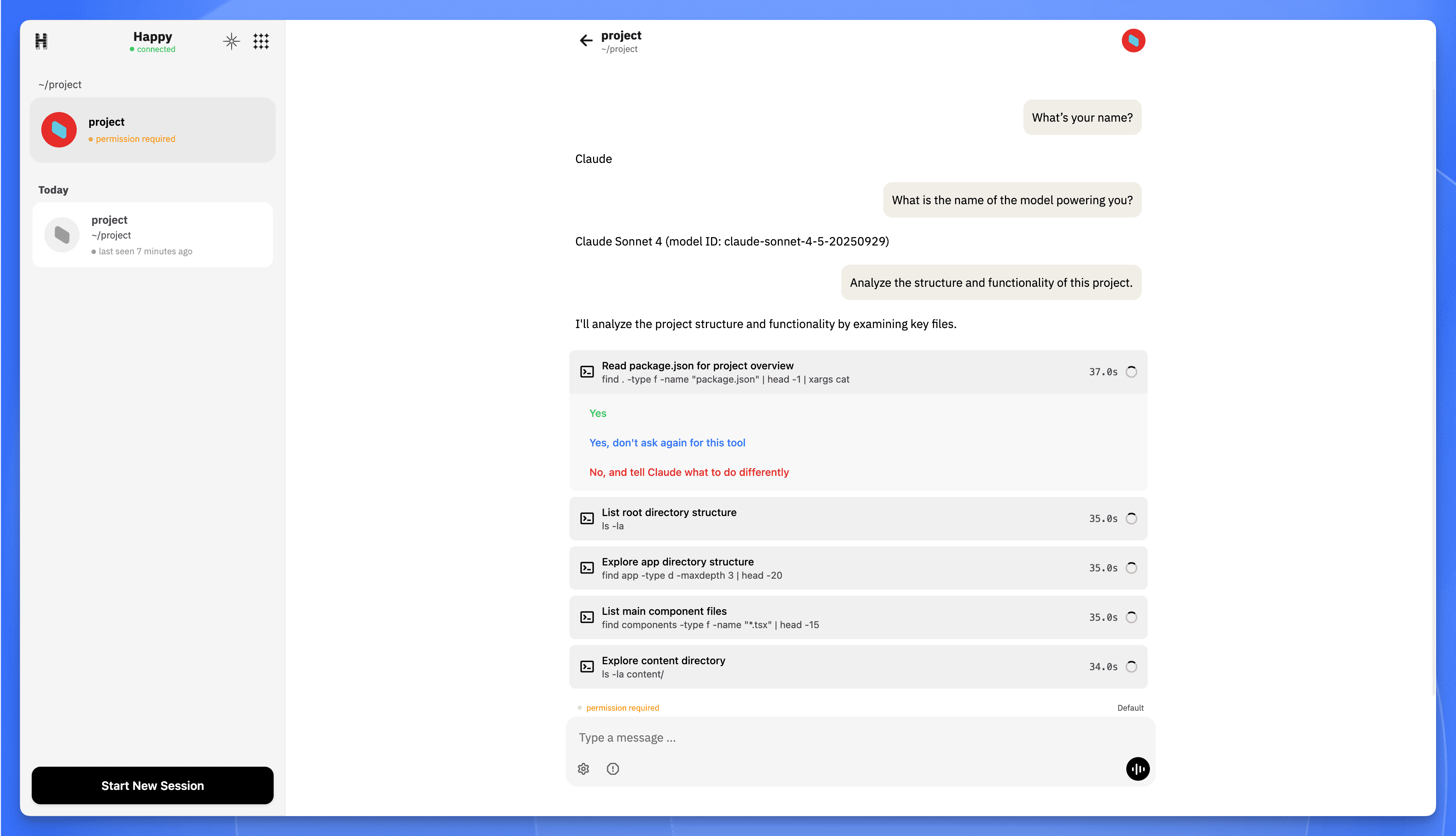 Happy Coder web interface
Why Choose Happy?
- Zero Network Configuration: Unlike SSH + Tailscale, Happy handles connectivity automatically—no need to manage IPs, ports, or VPN settings.
- QR Code Pairing: Secure device linking in seconds without typing complex credentials on a phone keyboard.
- Designed for AI Workflows: The UI is optimized for the back-and-forth nature of AI-assisted coding, with clear task separation and progress visualization.
The Core Components
| Component | Function |
|---|---|
| Happy Client | Your mobile gateway—available as a native app (iOS, Android) or web app |
happy-coder CLI | The secure bridge installed on your host machine |
| Claude Code CLI | The AI editor (@anthropic-ai/claude-code) running alongside |
How to Set It Up
Prerequisites:
- A host machine (Linux, macOS, or Windows with WSL)
- Node.js v18 or later installed on the host
Step 1: Install the Backend Tools
On your host machine's terminal, install both packages globally:
Step 2: Authenticate Claude Code
Connect Claude to an AI model using one of these options:
-
Option 1: Official Anthropic Subscription Run
claude, then type/loginand follow the prompts. -
Option 2: Third-Party API (like Sealos AI Proxy) Set environment variables with your provider's credentials:
Step 3: Link Your Mobile App
- Download the Happy client from your app store or open the web app.
- Generate a pairing QR code on your host:
- Scan the QR code in the Happy app to securely pair your devices.
You're now ready to start conversations with Claude Code from your phone's intuitive interface.
Option B: Alternative Mobile Tools for Remote Development
Happy isn't your only choice. Depending on your workflow preferences, these alternatives may better suit your needs:
Terminal Emulators with Enhanced UX
| Tool | Platform | Best For | Key Feature |
|---|---|---|---|
| Blink Shell | iOS | Power users who want SSH + MOSH | Supports MOSH protocol for unstable connections; hardware keyboard optimization |
| Termius | iOS/Android | Cross-platform teams | Syncs SSH hosts across devices; built-in SFTP |
| a-Shell | iOS | iPad users | Local shell with SSH capabilities; great with external keyboards |
Pro Tip: Blink Shell's MOSH support is invaluable for mobile coding. Unlike SSH, MOSH handles network switching (Wi-Fi → cellular) gracefully, keeping your Claude Code session alive even when connectivity is intermittent.
Browser-Based IDEs
For those who prefer a graphical code editor over terminal interfaces:
- GitHub Codespaces: Access your repositories through a full VS Code interface in Safari or Chrome. Works on tablets with Bluetooth keyboards for a near-desktop experience.
- Replit Mobile: A cloud IDE with built-in AI assistance (Ghostwriter). Less powerful than Claude Code but requires zero setup.
- VS Code Web (vscode.dev): Connect to your remote machine via VS Code's remote tunnels feature, then access it through any mobile browser.
Specialized Cloud Platforms
- Google Cloud Shell: Free browser-based shell accessible from any device. Install Claude Code CLI here for a zero-cost host option.
- AWS CloudShell: Similar to Google's offering, integrated with your AWS environment.
When to Choose Each Approach
| Your Situation | Recommended Tool |
|---|---|
| Want the simplest mobile-first experience | Happy |
| Already comfortable with SSH, need reliability | Blink Shell + MOSH |
| Need to sync across iOS and Android devices | Termius |
| Prefer visual code editing over terminal | GitHub Codespaces |
| Working with existing cloud infrastructure | VS Code Remote Tunnels |
| Just experimenting, want zero commitment | Replit |
Method 5: The Zero-Setup Path with Cloud Development Environments (CDEs)
For developers who want to skip infrastructure headaches entirely, Cloud Development Environments (CDEs) represent the fastest path to mobile coding with Claude Code. A CDE is an on-demand, fully-configured workspace that runs entirely in the cloud—no host machine, no SSH tunnels, no dependency management.
This approach is ideal for:
- Beginners who want to try Claude Code without complex setup
- Teams needing consistent, reproducible environments
- On-the-go developers who may not have access to a personal host machine
- Security-conscious organizations that prefer isolated, ephemeral workspaces
What is a Cloud Development Environment?
A CDE provisions a complete Linux-based development container in seconds. Unlike traditional setups where you manage your own server, the cloud provider handles:
- Compute resources: CPU, RAM, and storage are allocated on-demand
- Pre-installed toolchains: Node.js, Git, Python, and other dependencies come ready to use
- Network isolation: Your workspace runs in a secure sandbox with controlled internet access
- Automatic scaling: Resources adjust based on your workload (e.g., running tests or building projects)
When combined with Claude Code, CDEs enable a powerful workflow: you issue commands from your phone, and the AI executes them in an isolated cloud container—never touching your local machine or consuming your phone's resources.
Why CDEs Excel for Mobile Claude Code
The architecture of CDEs aligns perfectly with mobile use cases:
| Benefit | How It Helps Mobile Users |
|---|---|
| No always-on host required | Unlike SSH setups, you don't need a desktop running 24/7 |
| Parallel task execution | Launch multiple Claude Code sessions across different repositories simultaneously |
| Instant environment spin-up | Go from zero to coding in under 60 seconds |
| Ephemeral workspaces | Environments can be destroyed after use, reducing security exposure |
| Consistent tooling | Every session starts with the same configuration—no "works on my machine" issues |
According to Anthropic's engineering blog, sandboxed cloud execution reduces permission prompts by 84% compared to local CLI usage, making the experience significantly smoother on mobile where approving each action is cumbersome.
Sealos DevBox: A Pre-Configured Claude Code Template
Sealos DevBox offers a turnkey solution specifically designed for Claude Code mobile workflows. The template comes with happy-coder and @anthropic-ai/claude-code pre-installed, eliminating all manual setup.
Getting Started in 3 Steps:
Step 1: Launch the Environment
Click the button below to provision a new DevBox instance with Claude Code pre-configured:
➡️ Launch Claude Code Environment on Sealos DevBox
The environment initializes in approximately 30-60 seconds. You'll receive a web-based terminal interface.
Step 2: Authenticate Your AI Model
In the DevBox terminal, configure your Claude API access:
Step 3: Connect Your Mobile Device
Generate a pairing QR code for the Happy mobile app:
Scan the QR code with the Happy app (iOS | Android | Web) to establish a secure connection.
That's it. You now have a fully functional Claude Code environment accessible from your phone.
DevBox vs. Other Cloud IDE Options
How does Sealos DevBox compare to other popular cloud development platforms?
| Platform | Claude Code Support | Mobile Optimization | Setup Time | Pricing Model |
|---|---|---|---|---|
| Sealos DevBox | ✅ Pre-installed template | ✅ Happy integration | ~60 seconds | Pay-per-use |
| GitHub Codespaces | ⚠️ Manual installation | ⚠️ Browser-only | ~2-3 minutes | Free tier + hourly |
| Gitpod | ⚠️ Manual installation | ⚠️ Browser-only | ~1-2 minutes | Free tier + hourly |
| Replit | ❌ No native support | ✅ Native mobile app | Instant | Free tier + subscription |
| AWS Cloud9 | ⚠️ Manual installation | ❌ Not optimized | ~5 minutes | AWS pricing |
Key Differentiator: Sealos DevBox is currently the only CDE with a dedicated Claude Code template and built-in Happy integration for native mobile app connectivity.
Security Considerations for Cloud-Based Coding
When your code runs in the cloud, security becomes paramount. Here's how CDEs address common concerns:
- Code Privacy: Reputable CDE providers (including Sealos) do not use your code for training AI models. Review the provider's data policy before use.
- Credential Management: Never hardcode API keys in your environment. Use environment variables or secret management tools.
- Network Isolation: CDEs typically restrict outbound network access to approved endpoints, preventing data exfiltration.
- Session Expiry: Ephemeral environments automatically terminate after inactivity, reducing the window for unauthorized access.
When to Choose a CDE Over SSH or Happy-Only Setups
Choose a CDE if:
- You don't have a reliable always-on host machine
- You need to quickly test Claude Code without committing to a full setup
- You're working on a temporary or experimental project
- Your organization requires isolated, auditable development environments
- You want to run multiple parallel coding sessions
Stick with SSH + Tailscale if:
- You already have a powerful desktop or server
- You need full control over your environment configuration
- You prefer not to depend on third-party cloud services
- Cost is a concern for extended usage periods
Cost Optimization Tips
Cloud environments bill by usage. Here are strategies to minimize costs:
- Stop environments when idle: Don't leave DevBox running overnight
- Right-size resources: Start with minimal specs and scale up only if needed
- Use ephemeral workspaces: Spin up new environments per task rather than maintaining long-running instances
- Leverage free tiers: Most platforms offer free monthly hours—sufficient for occasional mobile coding
Ready to try the fastest path to mobile Claude Code?
➡️ Launch Your DevBox Environment Now
For teams requiring custom configurations or enterprise features, explore Sealos Cloud for managed Kubernetes-based development environments.
Mastering the Mobile Workflow: Best Practices for Claude Code on Your Phone
Using an AI coding assistant on a mobile device is a fundamentally different experience than working at a desktop. The developers who get the most out of this setup aren't fighting the limitations—they're embracing a new paradigm. Here are the strategies that separate frustration from productivity.
Adapting to the Small Screen
The biggest mental shift is accepting that your phone is a command center, not a workstation. You're not here to read through thousands of lines of code. You're here to direct, review, and approve.
Work with summaries, not raw diffs. When Claude finishes a task involving many file changes, don't try to scroll through the entire diff on a 6-inch screen. Instead, ask:
"Summarize the changes you just made in bullet points."
Claude will distill its work into a digestible format, letting you grasp the scope of changes without eye strain.
Leverage the forgiving nature of natural language. One of the hidden benefits of AI-assisted coding on mobile is that you don't need to type perfect syntax. As one developer noted, "You can make a lot of typos and use terrible, shortened English. Claude always understands what you mean." A prompt like fix login null ptr bug is perfectly understood. This turns the phone's biggest weakness—slow, error-prone typing—into a non-issue.
Master your terminal app's shortcuts. If you're using a terminal client like Blink Shell or Termius, spend five minutes configuring the extra key bar. Adding quick access to Ctrl, Tab, Esc, and common symbols like {} and | will dramatically speed up your interactions.
The Golden Rules for Mobile Sessions
Based on community experience and our own testing, these practices will make your mobile coding sessions significantly more effective:
1. Bootstrap on Desktop, Iterate on Mobile
Don't try to set up a new project from scratch on your phone. The initial scaffolding—creating repos, configuring CLAUDE.md files, setting up environment variables—is far easier on a full keyboard. Once your environment is primed, mobile becomes excellent for iterative development, code reviews, and deploying fixes.
2. Embrace Parallel, Asynchronous Tasks
Mobile is ideal for a "fire and forget" workflow. Start a task, switch to another app (or put your phone away), and let Claude work in the background. Use push notifications to get alerted when input is needed or a task is complete. Some advanced users pair Claude Code with the ntfy app to get custom push alerts when the AI is waiting for approval.
Pro Tip: The cloud-based interfaces (like Anthropic's web app or Happy) allow you to run multiple agents on different repositories simultaneously. You could have one agent refactoring legacy code while another writes tests—all managed from your phone's notification shade.
3. Keep Sessions Short and Focused
Long, meandering conversations work against you on mobile. Context becomes harder to track, and you'll spend more time scrolling than making progress. Treat each mobile session as a single, focused mission:
- "Fix the bug in the payment handler."
- "Add input validation to the signup form."
- "Explain the authentication flow in
auth.service.ts."
When the task is done, start a fresh session for the next one.
4. Trust, But Verify
It's tempting to let Claude run autonomously and just tap "Create PR" at the end, especially when you're on a bumpy bus ride. Resist this urge for any code that matters. Always review the summary of changes. If you're unsure, explicitly ask Claude to explain its reasoning or run the test suite before merging. A mobile setup encourages blind trust; your job is to be the critical thinker in the loop.
5. Be Mindful of Environment Differences
If you're using a cloud sandbox (like Anthropic's web environment or Sealos DevBox), remember it may not perfectly mirror your local setup. Differences in OS, tool versions, or environment variables can cause unexpected test failures. If something works locally but fails in the cloud session, the discrepancy is often the culprit—not the AI.
What Real Users Are Saying
The community feedback on mobile Claude Code has been largely positive, with a few caveats:
| Praise | Concerns |
|---|---|
| "The freedom to manage projects from anywhere is a game-changer." | "I need to watch my API usage—it's easy to let tasks run longer than expected on mobile." |
| "Handling a 2 AM production bug from my bed instead of driving to the office? Priceless." | "The raw terminal UI was hard to read on a small screen before the web/app interfaces came out." |
| "It shifts my role from 'writing code' to 'orchestrating code production.' That feels like the future." | "I have to remind myself to actually review the code, not just approve everything." |
The consensus is clear: mobile Claude Code isn't a replacement for focused desktop work, but it's a powerful extension that keeps you productive in moments that were previously dead time.
Conclusion
The path to a truly mobile development workflow is clearer now than it was a year ago. Official Claude mobile apps and Claude web handle quick review and lightweight cloud tasks today, while SSH, Termux, Happy, and hosted workspaces cover the heavier workflows.
- For total control, the SSH and Tailscale method offers unparalleled, direct access.
- For a friendlier experience, UI-centric tools like Happy bridge the gap with a polished interface.
- For maximum efficiency, Cloud Development Environments (CDEs) like the Sealos DevBox eliminate setup entirely, offering an instant, powerful workspace in the cloud.
The future of coding isn't about being chained to a desk. It's about having the right tools to be productive, wherever you are. For those interested, you can explore setting up your own cloud-based environment on Sealos Cloud.
Suggested Next Reads
- If you want the fastest hosted workflow, start with Sealos DevBox.
- If you want the broader theory behind hosted workspaces, read What Is a Cloud Development Environment?.
- If you are evaluating the product itself, read What Is DevBox?.
- If cost visibility is part of your mobile workflow, read Claude Code Metrics Dashboard with Grafana: Setup Guide.